Jellyfin is a mediacenter that you can access after you're received credentials from me (shared with jellyseerr).
It's available through various means
- On the web, by clicking on this link
- Via an app (Android, Apple or TV Android)
By experience, using the app causes less issues.
According to your TV specs, you may be able to "cast" the videos to your TV from your phone.
This documentation is taking the web version as example. On other means, it should be quite the same.
¶ Connexion
Can't be simpler : just enter your username and password.
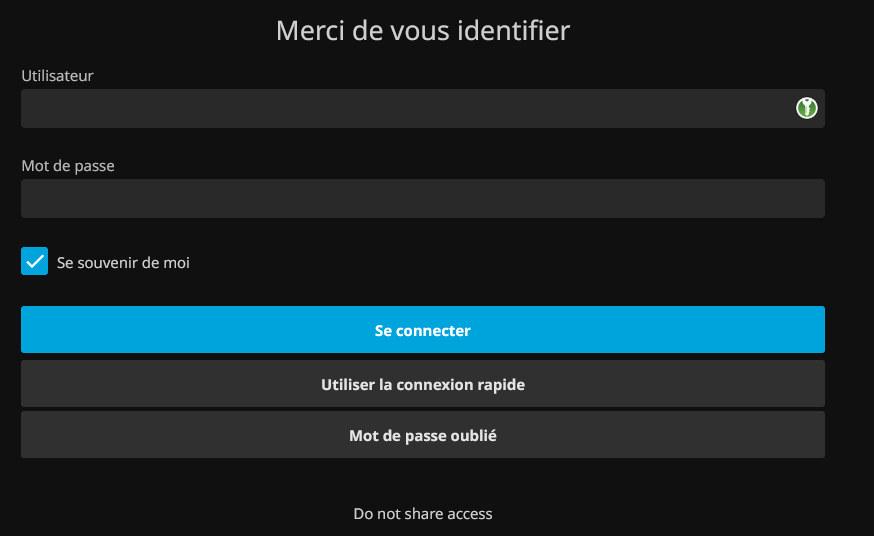
Quick connect is there for special hardware like your TV, or gaming console, on which you don't have a proper keyboard. This will clearly save you a lot of headaches if you're using a complex password like you should 
¶ User settings
By clicking on the 👤 icon on the top right, you'll be able to access your user settings. Default settings should be good but don't hesitate to have a look.
I suggest visiting 🏠 Home icon, which will you allow to reorder your categories for an easier access to content in your language.
In the ▶️ Playback menu, you'll be able to setup your favorite audio and lower the streaming quality if you're experimenting recurring issues.
¶ Home
You land there after login.
In the Top navigation bar, you'll see those icons

- The Group allows (for those who have the function activated) to create a watch party and sync the playback.
- Second icon is for casting, useful if you're browsing from your phone.
- Third icon is for search.
- Fourth icon is for the user settings.
Please note that sometimes, you won't find content due to translations of titles.
Try to use original title if possible.
Spaces do count, so if you search for "This specific movie" and you add by mistake a space at the end or beginning, it won't find.
On the first line below, you'll be able to see the media available, by categories.
Because I consider french as the main one, it's also setup to request content with dual audio tracks (FR and Original/English). YOu'll find collections for movies in german/spanish or original too.
Other lines below display various suggestions, depending on what you've already watched.
¶ Viewing content
¶ Books
Books are not very accessible that way. Those of you really interested may just ask for an access to Calibre.
Alas, it is ordered by author, then by titles.
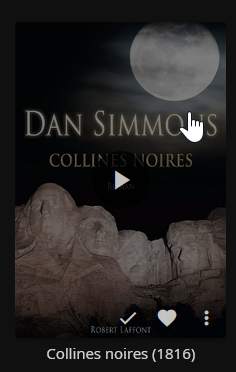
If you click on the Play button, it will directly show the content. If you click elsewhere, you'll end up in the item details.
YOu'll be able to either read, download the file, mark the book as read or put it as favorite

¶ Movies
In the movies tab, you'll get a bit more options for filtering especially the Genres tab if you're looking for a specific type.
Thew main anvigation pane will give you access to the filters, ordering options etc...

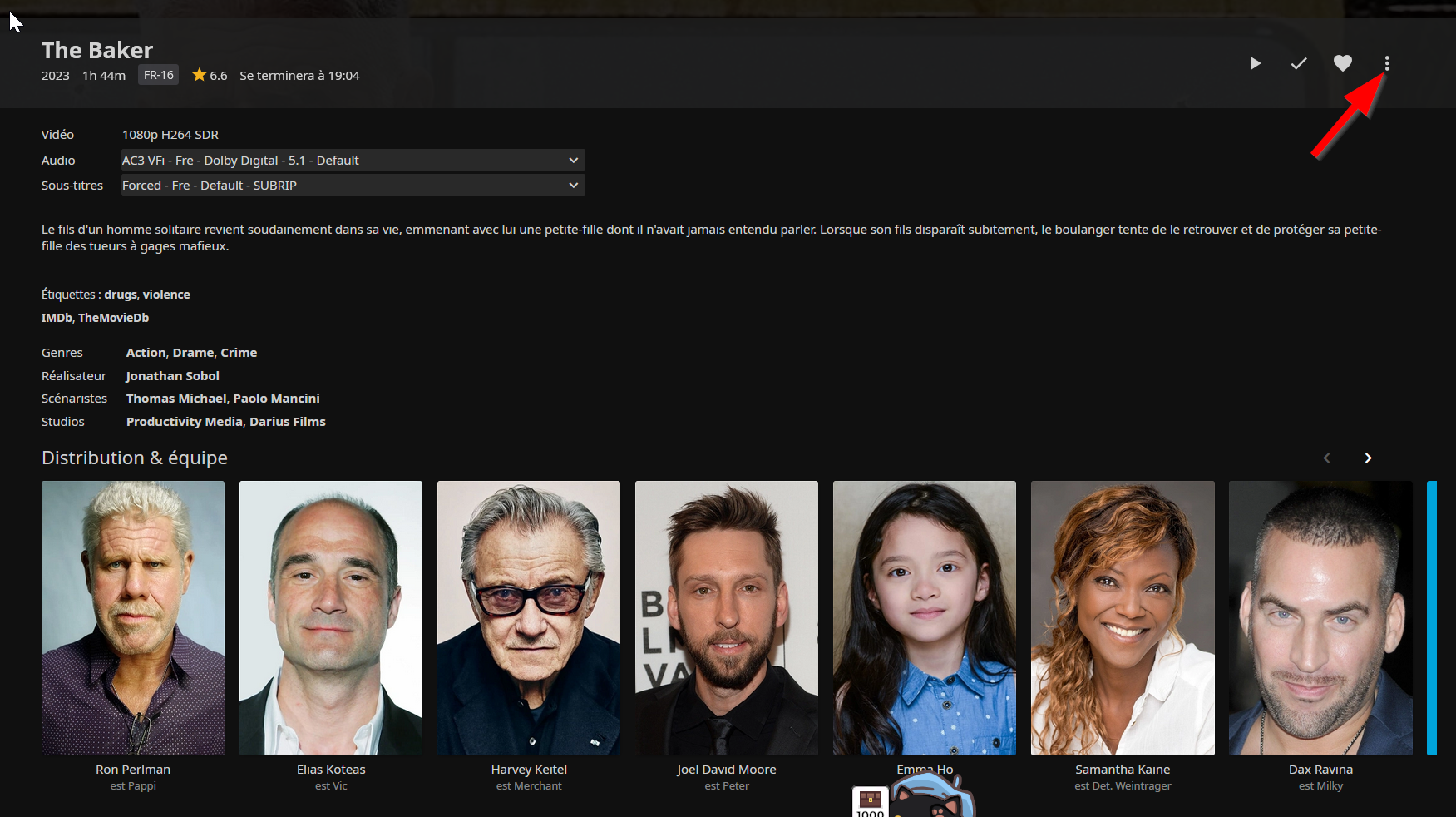
When you get inside a movie, you get the synopsis, information about actors,etc...
If available, language and subtitles choices (You are also able to change that after starting a movie).
For some movies, ypu may see 🎞️ Film icon, which you can click on to show the trailer.
if you click on the three dots, you'll see a submenu for downloading the content offline or request subtitles
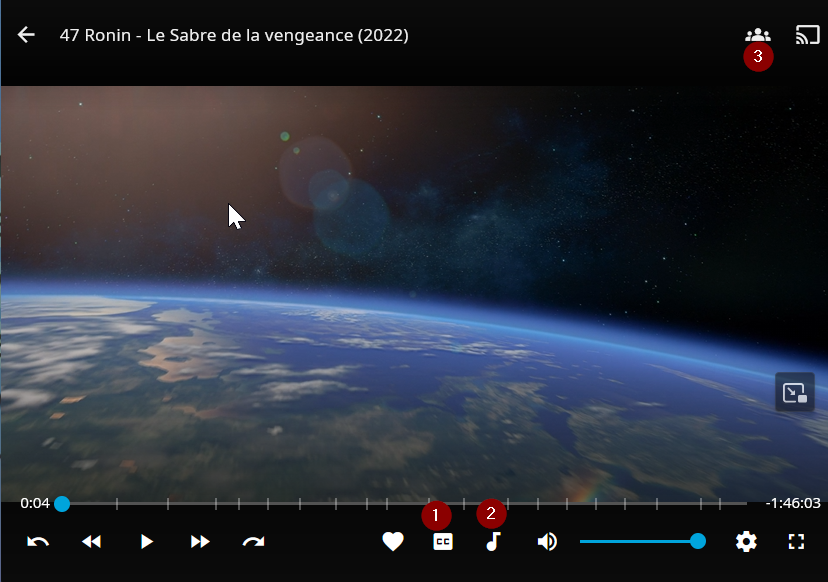
Once you launch a movie, you'll see a very classical media player , with three buttons of interest.
- Change subtitltes
- CHange audio
- Set up a Play party for synched view.
¶ TV shows
This is the same as movies.
Only things that changes is that the episodes are classified by Season (and Specials folder) and the next one will play after you finish an episode.
¶ Music
Here, on the top bar, you'll be able to check artists and genres.
As soon as you are in an album, you get the list of titles and can play whatever album you wish.
It does not stop playing if you rowse other parts of the site!
With the three dots menu, you can aadd content to the current playlist.
¶ Request subtitles
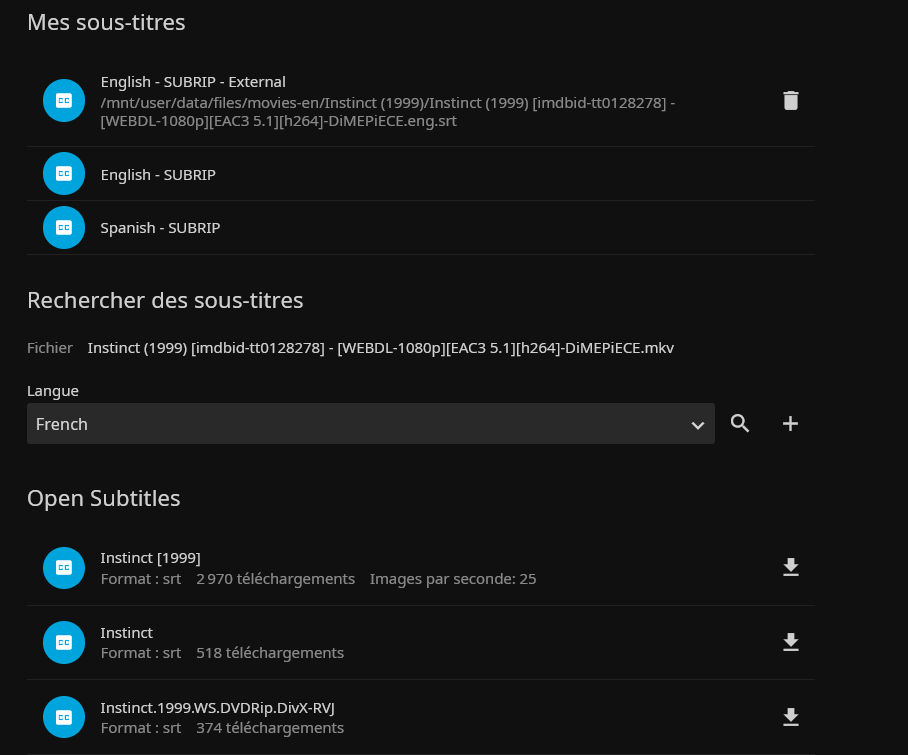
If the language you wish is not listed, click on the three dot menu and choosse Modify subtitles. Select the language, click the download button near the one that has most downloads.
¶ Report issues and ask for new content
This can be done on jellyseerr